
First ship · Early Access launch build
How to build and sail your first ship in ShipShaper
Quick Answer
Begin by dragging the visible nodes and spheres on the starter hull until its length, width, and profile look stable. Open the parts flow with the right mouse button or Creation mode, then change the selected item with the scroll wheel or the lower menu. Place only a few useful pieces on the first pass; expandable parts such as masts need to be stretched before their small plus points reveal more attachments. Before launching, add both propulsion and a rudder. Put the ship into the world, use WASD for the camera, and click the water to order movement. ShipShaper analyzes hull shape, weight, and propulsion, so a heavy brick-like hull may move very slowly even when the controls are working.
- Reading time
- 6 minutes
- Difficulty
- Getting started
- Checked
- 2026-09-03
On this page
Guide details
Before you begin
Shape the starter hull, add functional parts, fit propulsion and a rudder, launch the vessel, and diagnose a ship that will not move properly.
The developer-confirmed opening editor controls, a safe first-build order, the minimum rudder-and-propulsion sailing setup, launch controls, and basic movement recovery.
- Status
- Checked against the Steam store and developer replies
- Edition
- Early Access launch build
- Platform
- Windows PC · Steam
- Checked
- 2026-09-03
- Check note
- The developer directly described hull nodes, right-click or Creation mode, the scroll wheel, expandable mast points, the need for propulsion and a rudder, water-click movement, and WASD camera controls. Unconfirmed shortcuts are omitted.
Before you set out
Prerequisites#
- Start from a visible hull in the ship editor rather than an empty scene.
- Keep the first design simple enough to see which part changes each behavior.
- Add both a propulsion source and a rudder before judging the sailing controls.
Visual reference
Build the hull first, then layer on working parts#
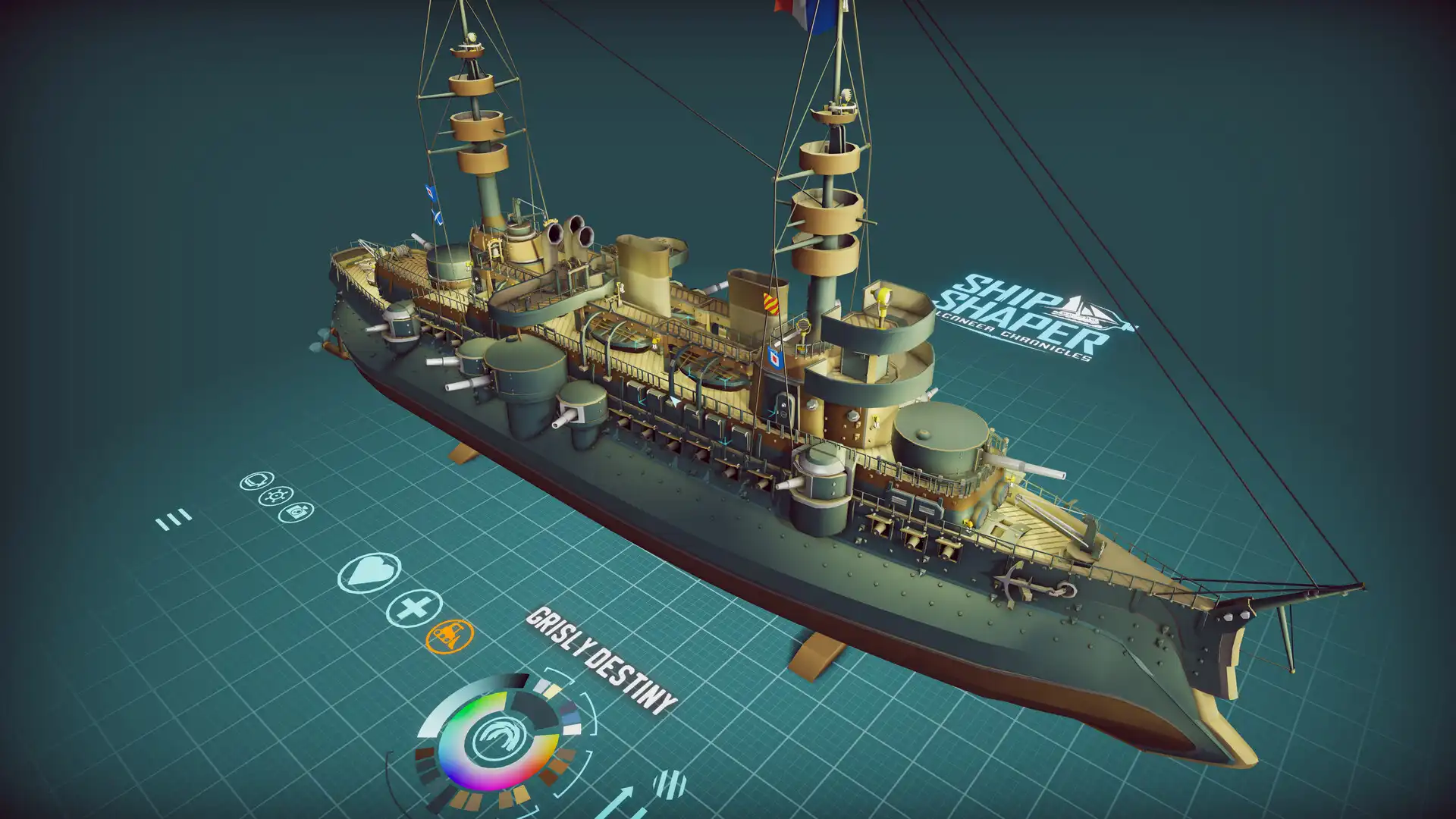
Route 02
Build a complete first ship#
Use one simple hull to learn the complete editor-to-water loop before adding a dense deck plan.
Pull the hull nodes into shape#
Drag the small nodes and spheres on the starting hull. Set the overall length, beam, bow, stern, and profile before filling the deck with parts.
Open the part placement flow#
Use the right mouse button or enter Creation mode. Change the active item with the scroll wheel, or use the menu below after a part has been placed.
Expand parts that expose more anchors#
Stretch a mast or another expandable piece, then select its small plus points to add the available extensions. Do not assume a newly placed compact mast is the final shape.
Add propulsion and a rudder#
A decorative hull is not yet a useful sailing test. Fit at least one propulsion source and one rudder before placing the vessel into the world.
Launch and click the water#
Place the ship in the world, move the camera with WASD, and click a point on the water to send the vessel toward it. Watch how the design responds before returning to the editor.
Route kit
Minimum parts for a useful sailing test#
The first launch needs control and motion. Decoration, weapons, and export setup can wait until the hull behaves predictably.
| Item | Need | Why it matters |
|---|---|---|
| Shaped hull | Required | Its form and weight affect the analyzed sailing behavior. |
| Propulsion | Required | Provides motion; a rudder alone will not drive the ship. |
| Rudder | Required | Provides steering for the water-click route. |
| Props, guns, and dense decoration | Optional | Add them after the simple vessel launches and moves as expected. |
Fault ledger
If the first ship will not sail properly#
- Clicking the water does nothing
- Return to the editor and confirm the design has both propulsion and a rudder before launching it again.
- The ship moves extremely slowly
- Reduce unnecessary mass or reshape a block-like hull. The game analyzes weight, hull form, and propulsion rather than applying one fixed speed.
- The desired part does not appear
- Use the scroll wheel or lower item menu to change the selection. For masts, stretch the placed part and inspect its small plus points.
- Camera movement is mistaken for ship control
- Use WASD to move the camera, then click the water to order the launched ship to move.
Field questions
ShipShaper first-ship questions#
- How do I add parts in ShipShaper?
- Use the right mouse button or Creation mode, then change the selected item with the scroll wheel or lower menu.
- How do I make a ShipShaper ship move?
- Add propulsion and a rudder, launch the vessel, and click the water. WASD controls the camera.
- Why is my ship so slow?
- ShipShaper analyzes hull shape, weight, and propulsion. A heavy or brick-like vessel can move very slowly even when it launched correctly.
- Can ShipShaper export a design?
- Yes. The official feature list includes FBX, STL, and Bulwark export paths.